
TrueDialog Portal
Administration > Users
This article shows you how to manage your users. The USERS page allows you to add a new user, update a user, send a reset password link, lock or unlock a user, and delete a user.
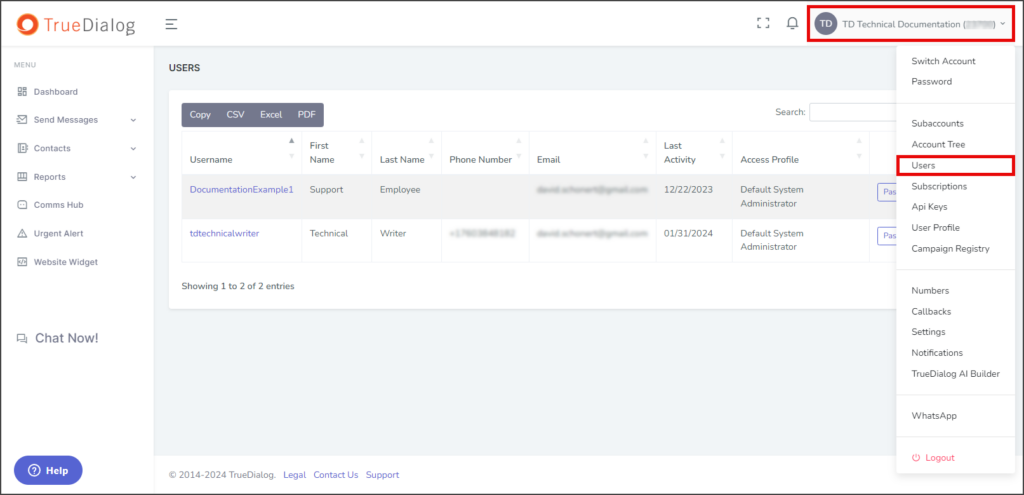
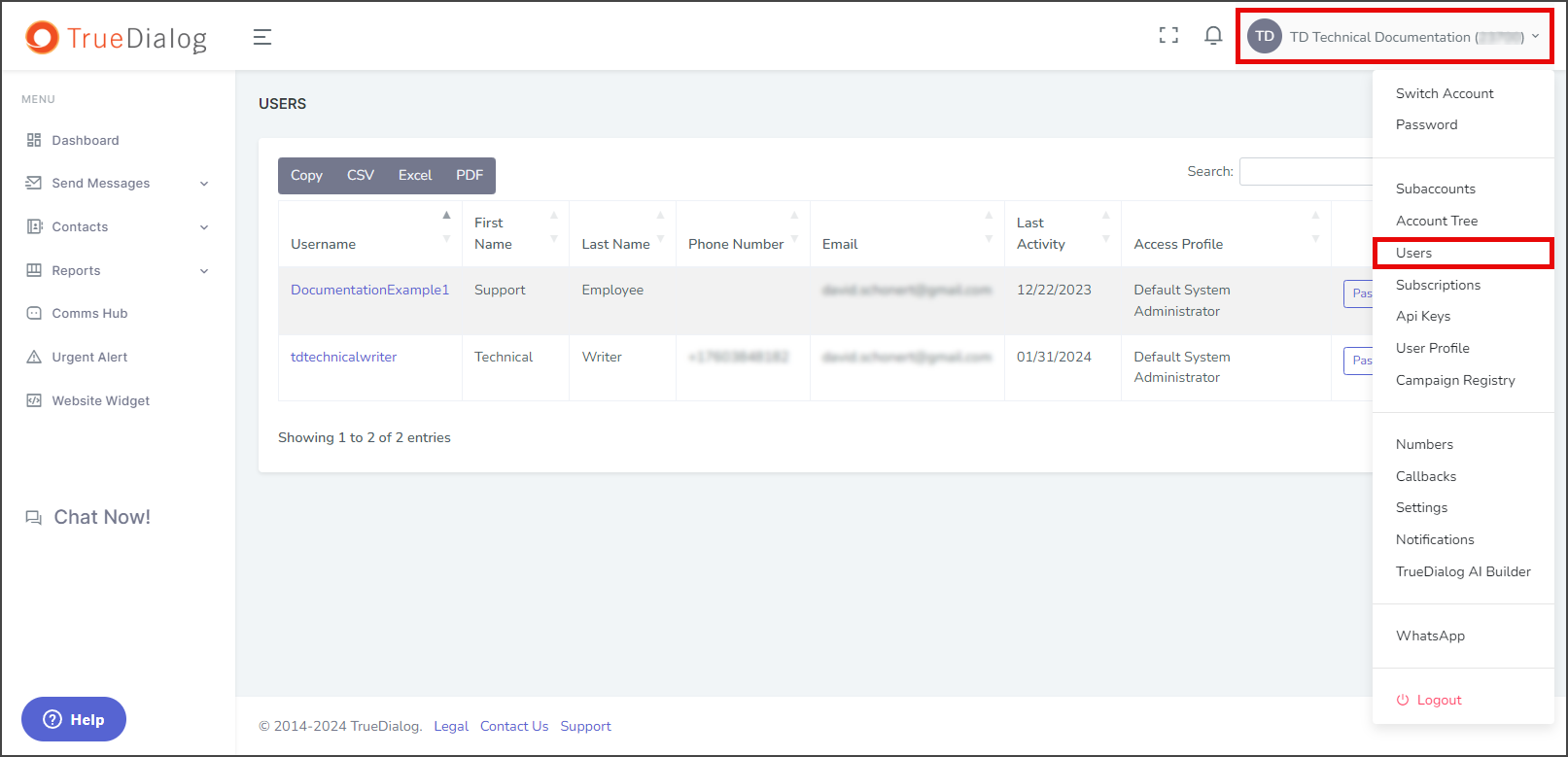
- Click your Account Name in the upper right corner.
- In the dropdown, select Users.
Create New User
See the Creating a User article for a guide to creating a new user.
Update User
You can update a user’s First and Last Name, Phone Number, Email, and Access Profile, but the Username can not be changed.
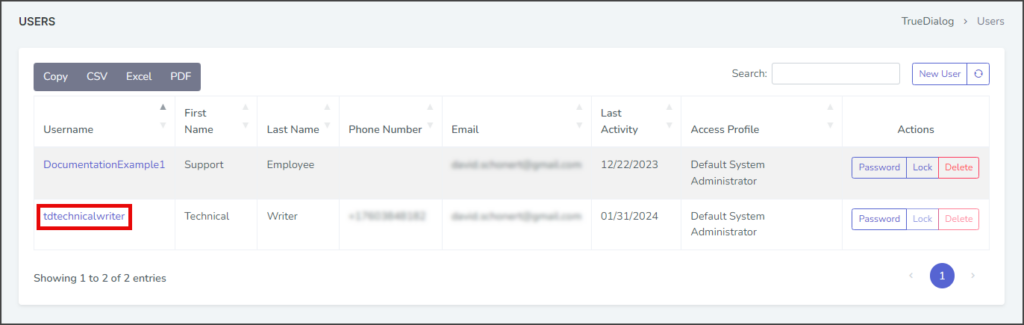
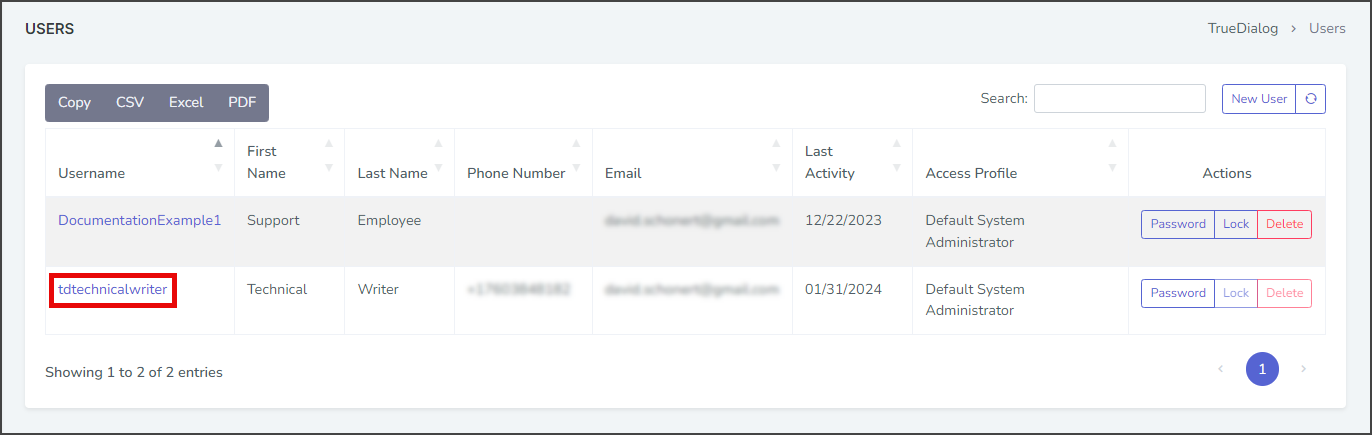
- Click the Username of the user you want to update.
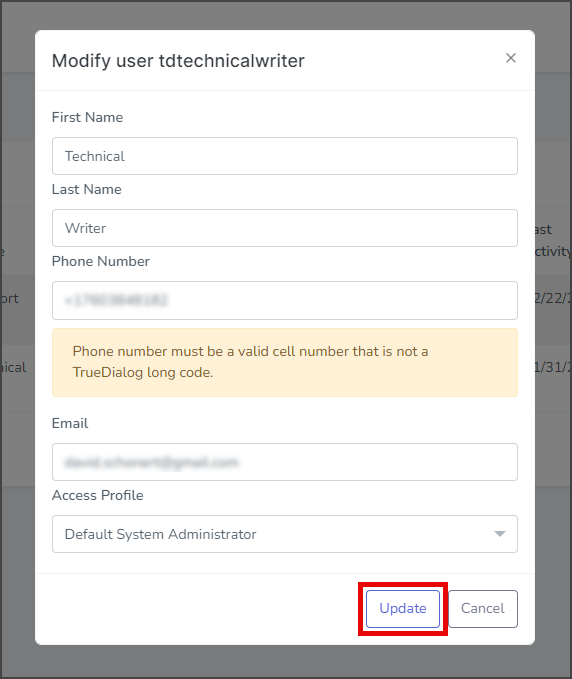
- Make the desired changes to the Modify user window.
- Click Update.
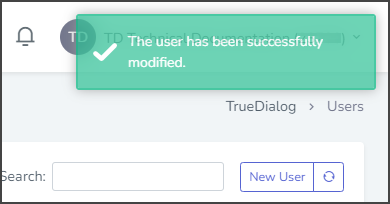
- After updating the user, a success message will appear in the upper right corner.
Reset User Password
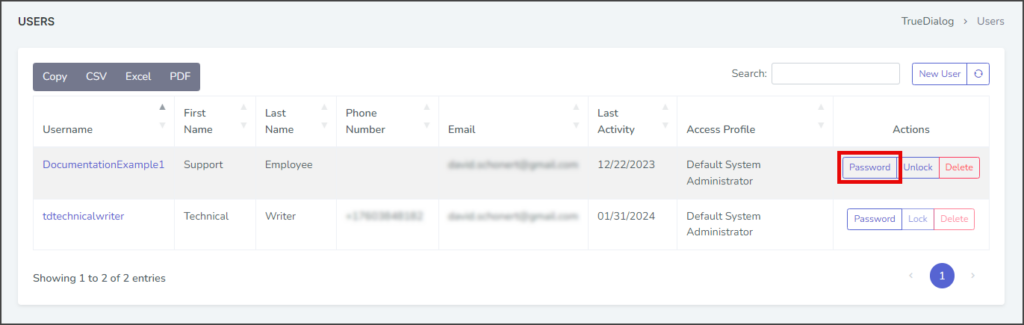
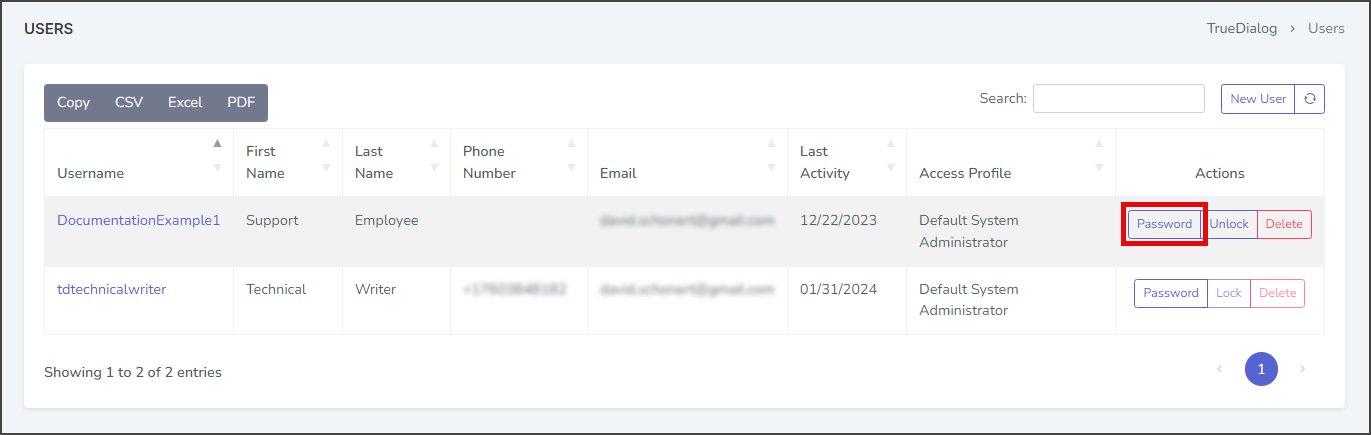
- Click Password for the user you want to send a password reset message to.
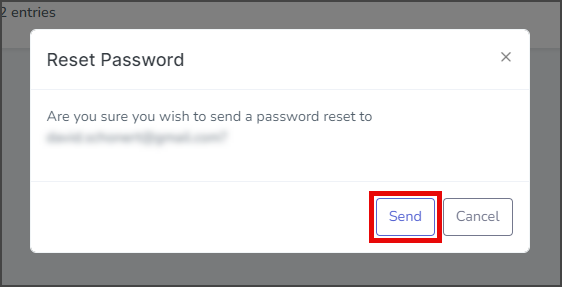
- Click Send on the Reset Password window to send a reset password link to the user’s email.
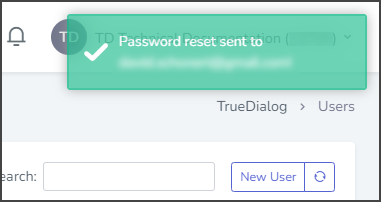
- After resetting the password, a success message will appear in the upper right corner.
- The user will receive an email from noreply@truedialog.com with the subject Reset Password.
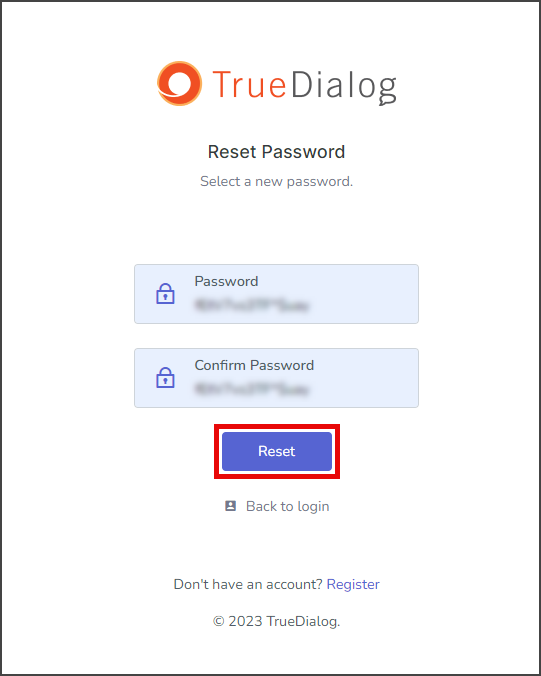
- When the user clicks on the reset password link in the email, they will be taken to the Reset Password page.
- The user must enter their new password in the Password and Confirm Password text boxes.
- Click Reset to change the password.
Lock/Unlock User
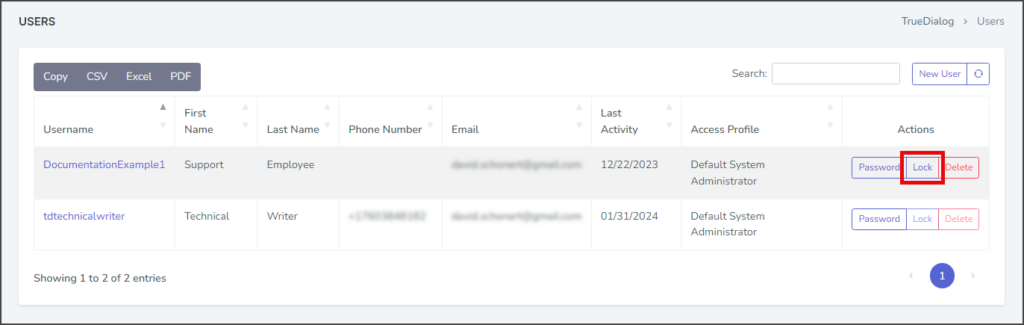
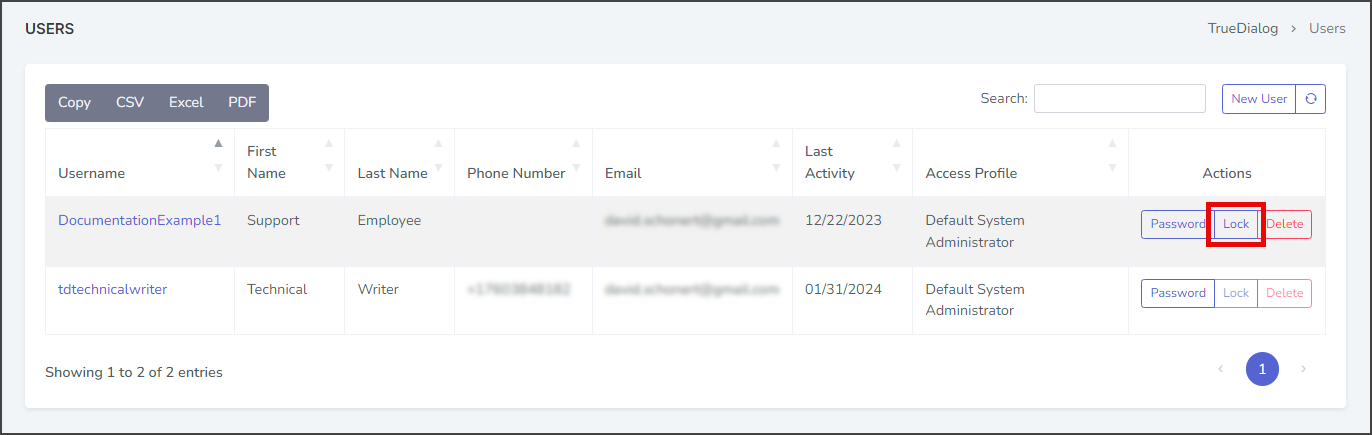
- Click Lock for the user you want to lock.
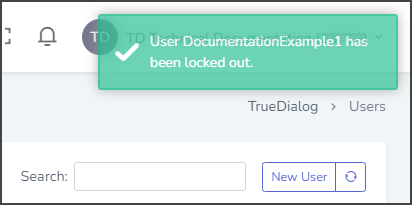
- After locking the user, a success message will appear in the upper right corner.
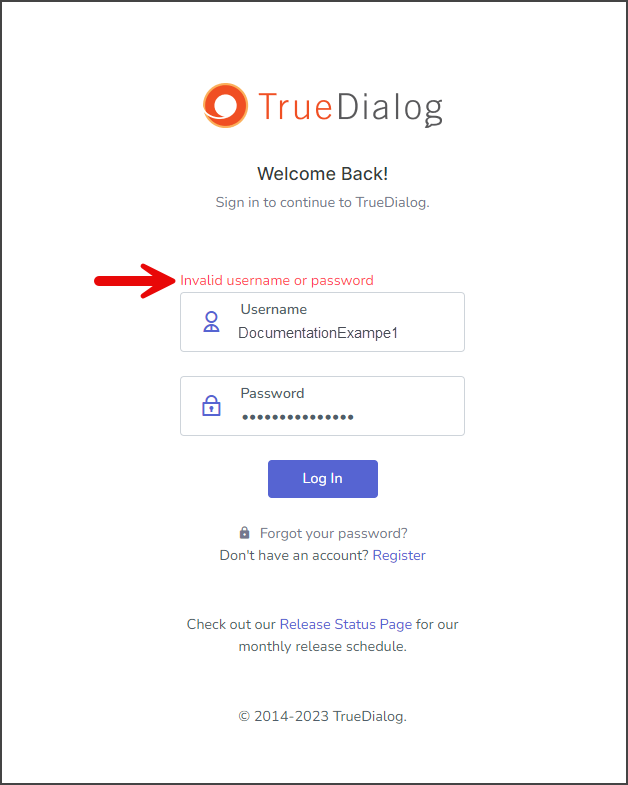
- When the user’s account is locked and attempts to log in, they will receive an Invalid username or password message.
- Click Unlock for the user you want to unlock.
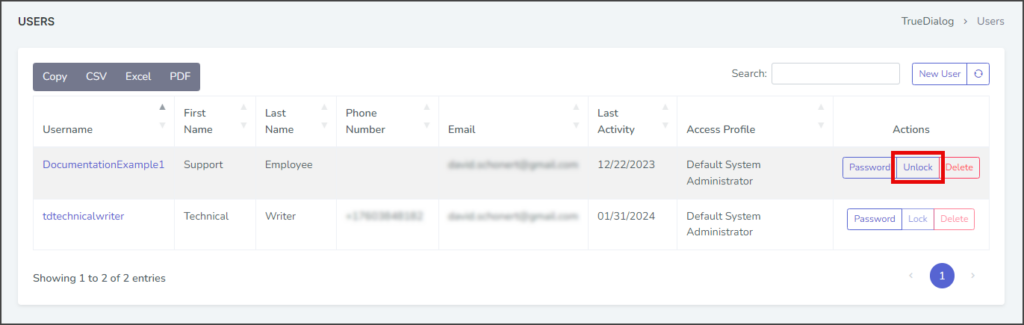
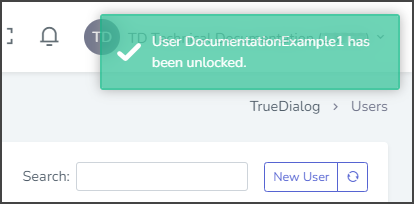
- After unlocking the user, a success message will appear in the upper right corner.

Delete User
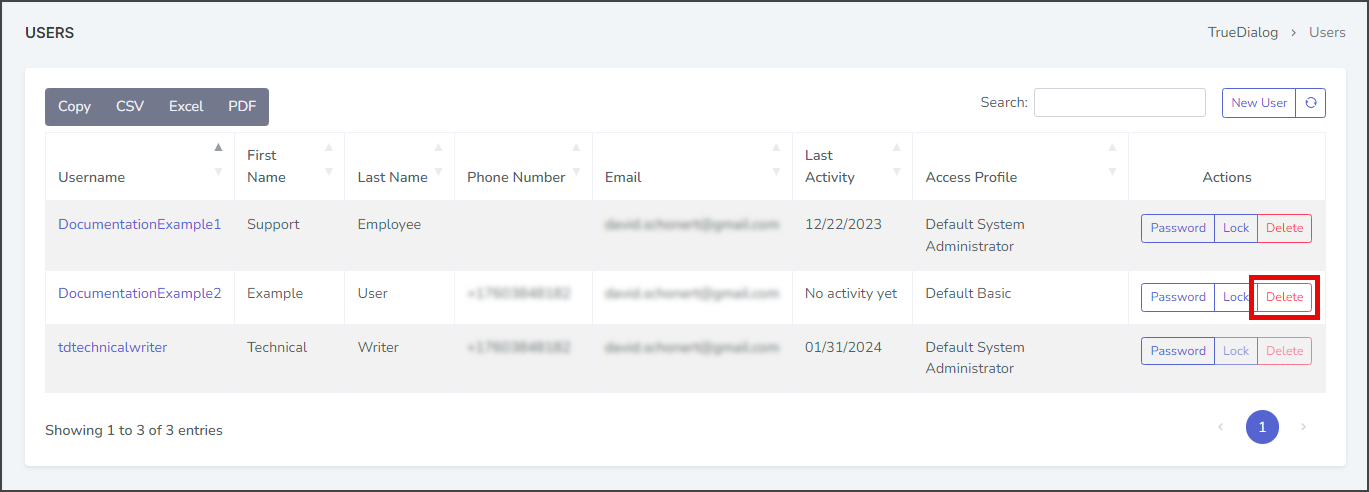
- Click Delete for the user you want to remove.
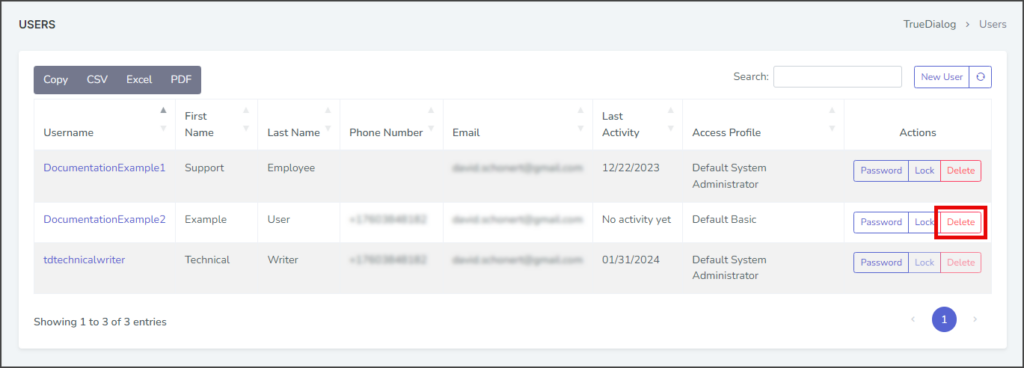
- Click Yes on the Delete user confirmation window.
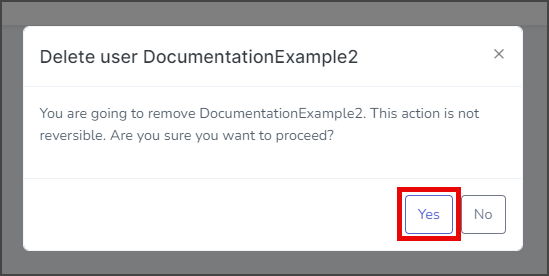
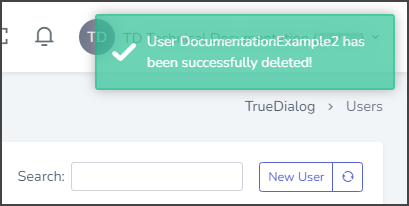
- Once complete, a successfully deleted notification will be displayed in the upper right corner.