
Microsoft Dynamics
TrueDialog Integration
This article shows how to attach a file to send an MMS message using the SMS Chat on your record’s page. For instructions on using the other features of the SMS Chat, see the following article.
| File Type | Supported Extensions |
|---|---|
| Image | .jpg | .jpeg | .jfif | .png |
| GIF | .gif |
| vCard | .vcf |
| Video | .mpeg | .mpg | .mpe | .m1v | .m2v | .mp4 | mp4v |
| Document | .doc | .docx |
| Text | .txt | .text |
| Audio | .wav | .mp2 | .mp3 |
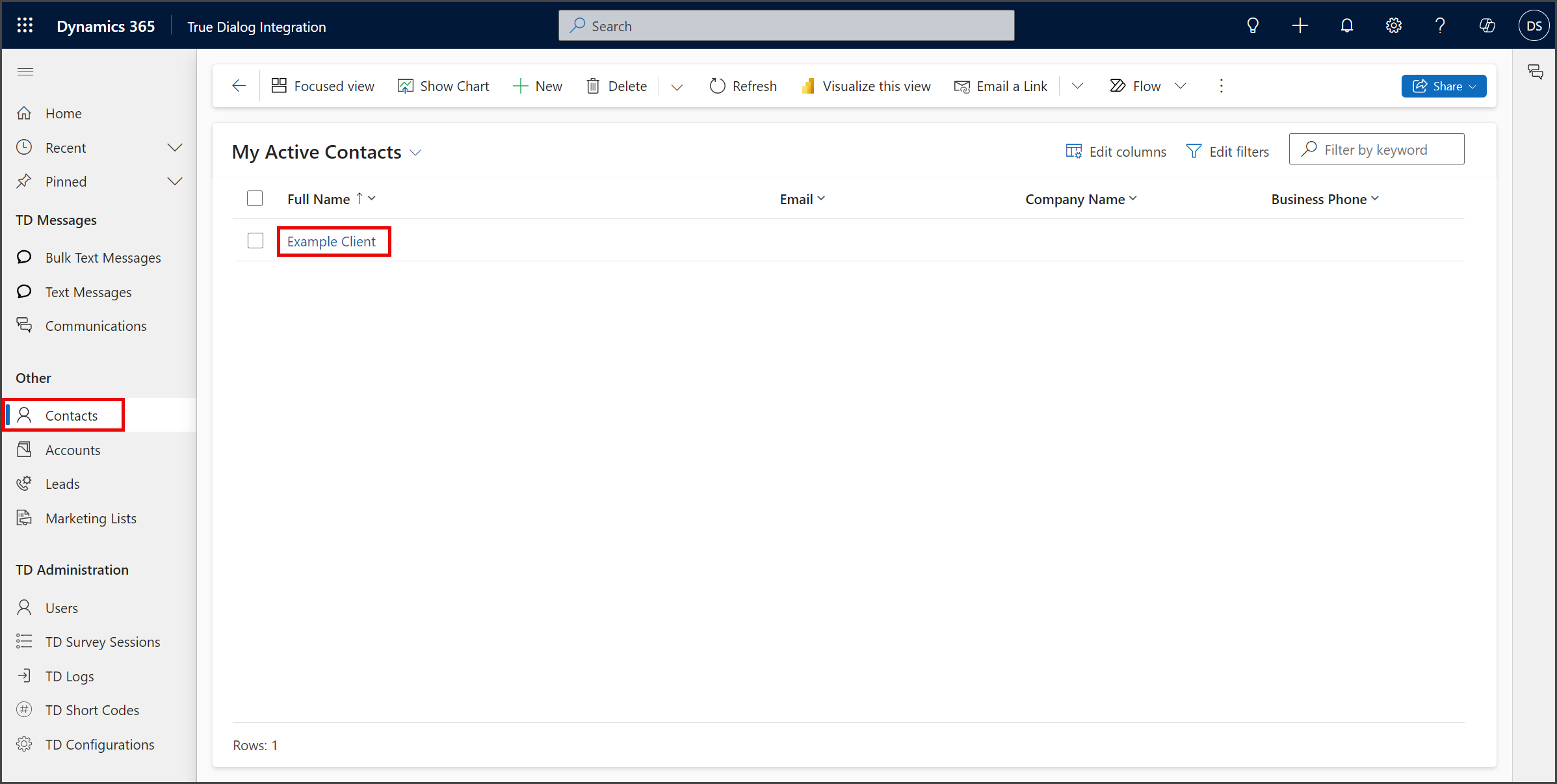
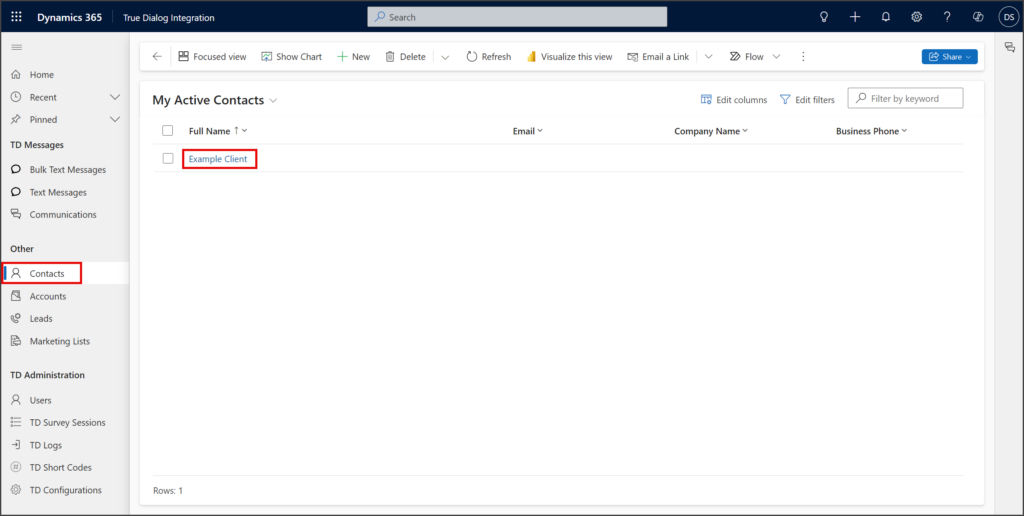
- Navigate to your Contacts page.
- Click the contact you wish to send a message.
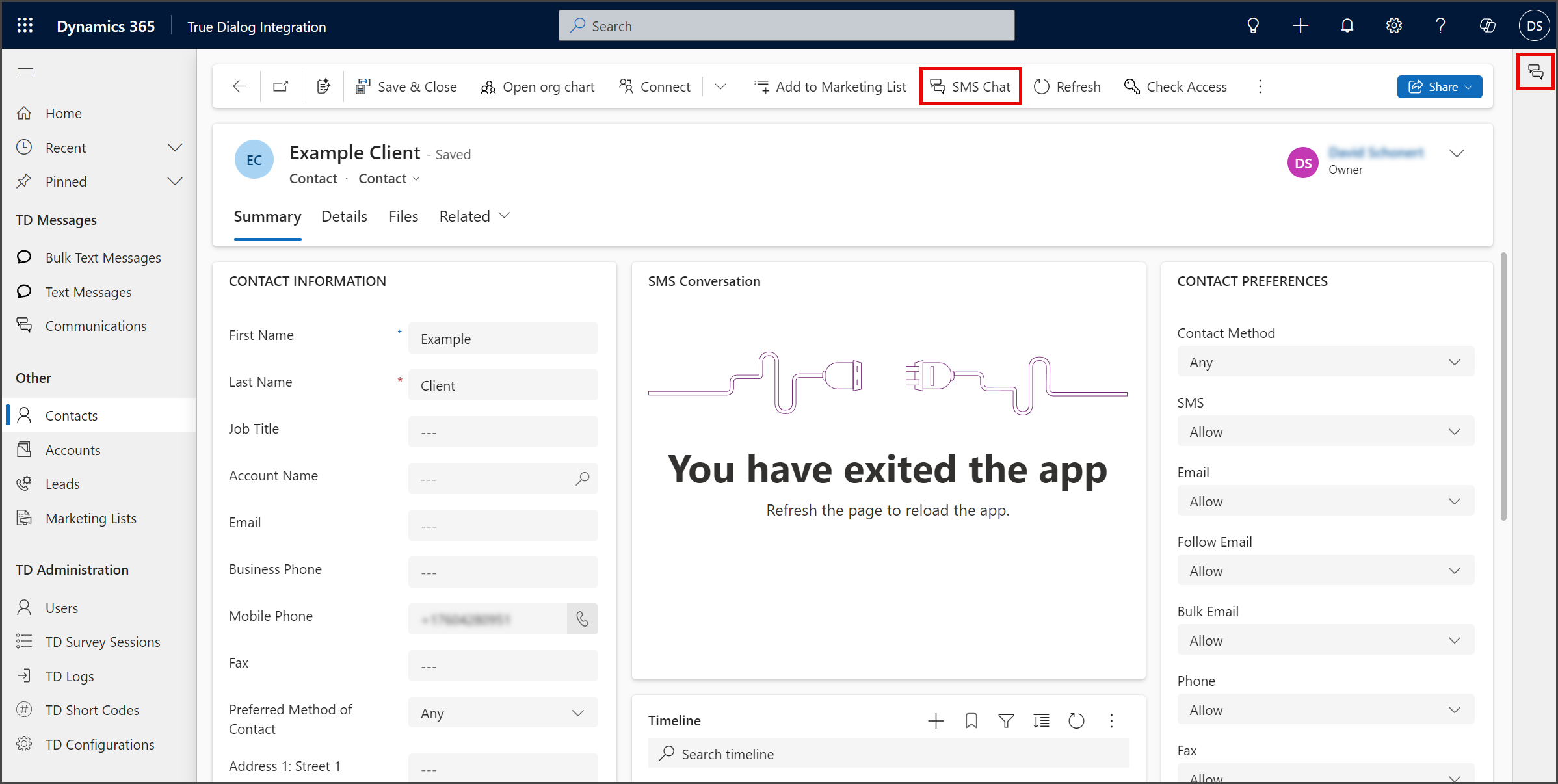
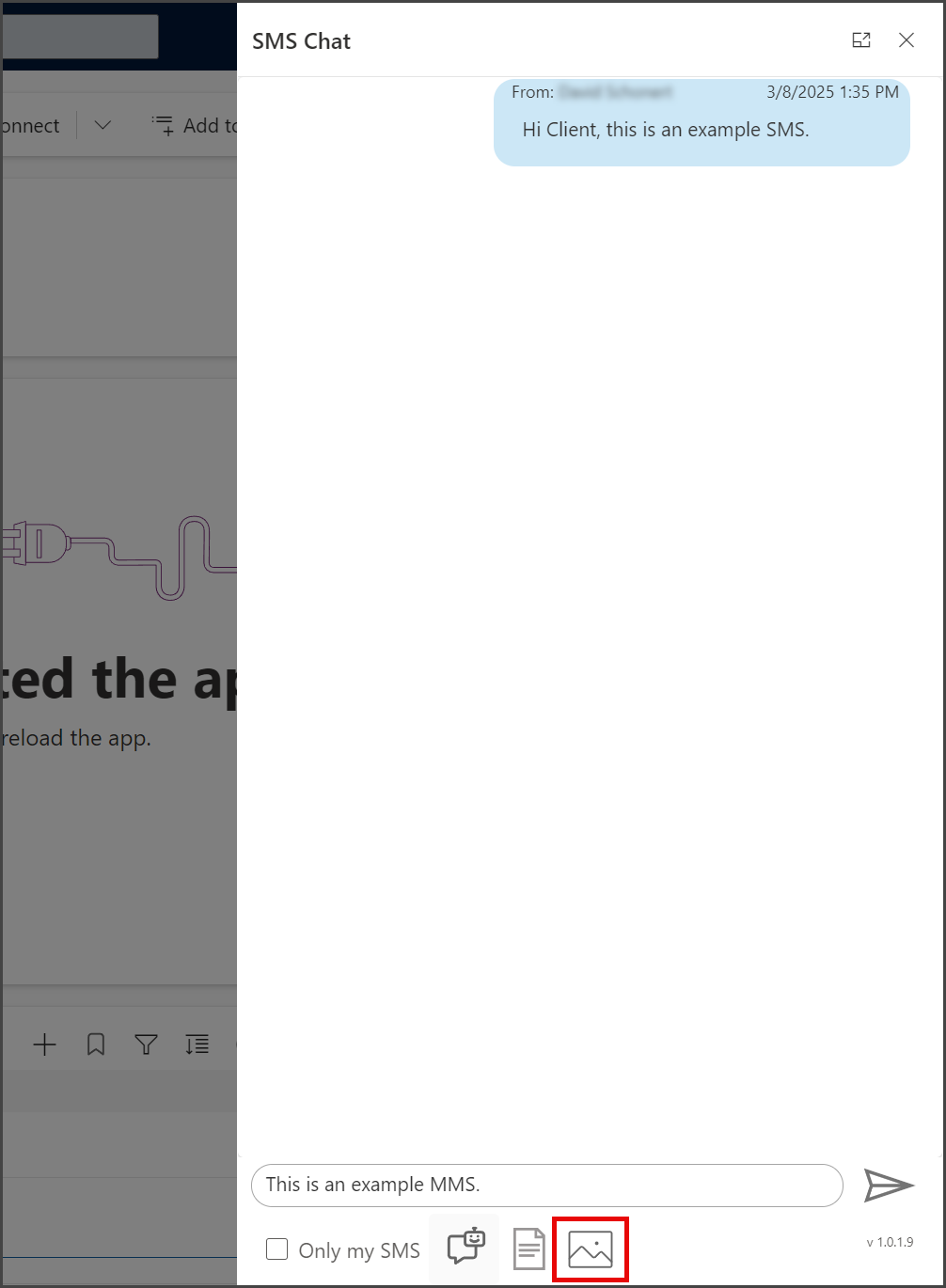
- Click the SMS Chat button from either the Ribbon or the right sidebar.
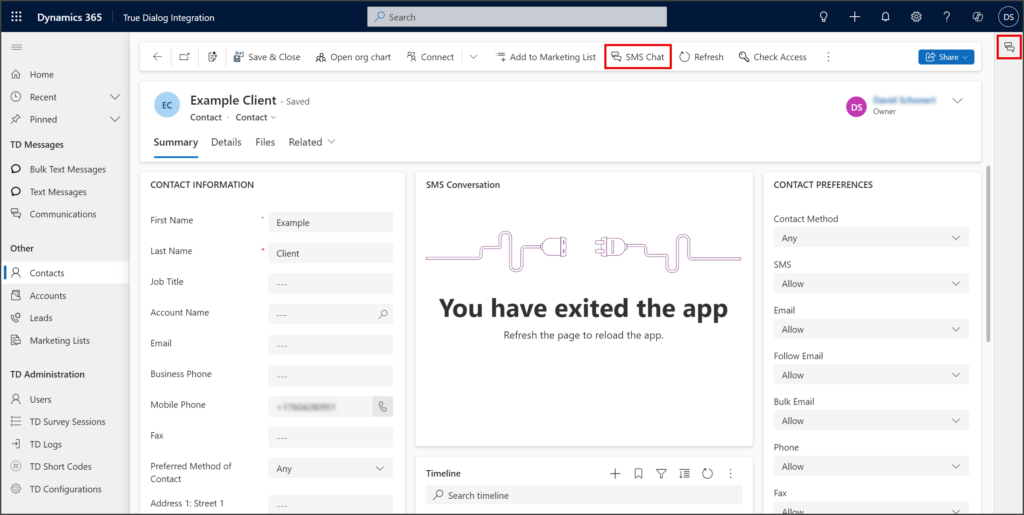
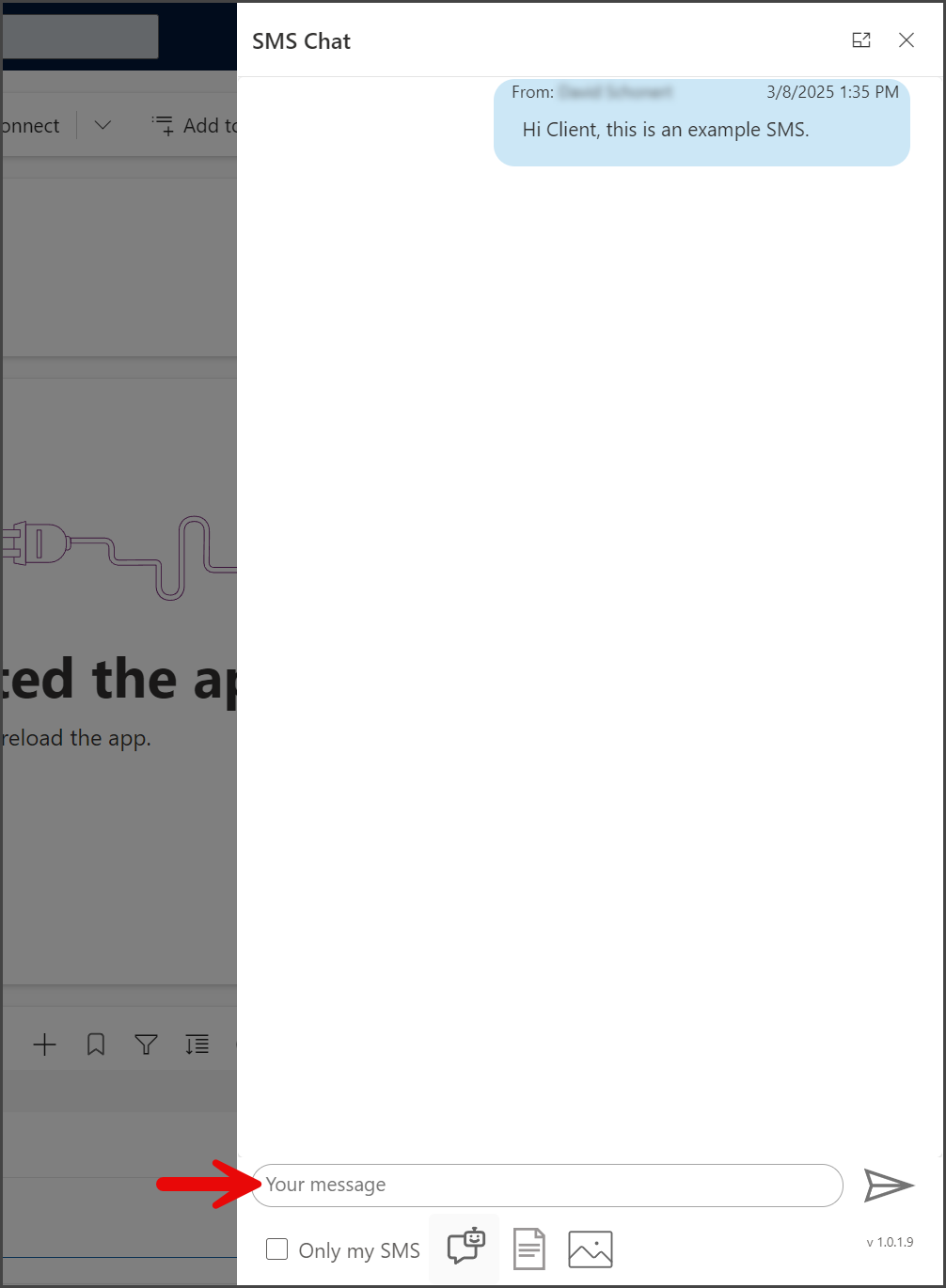
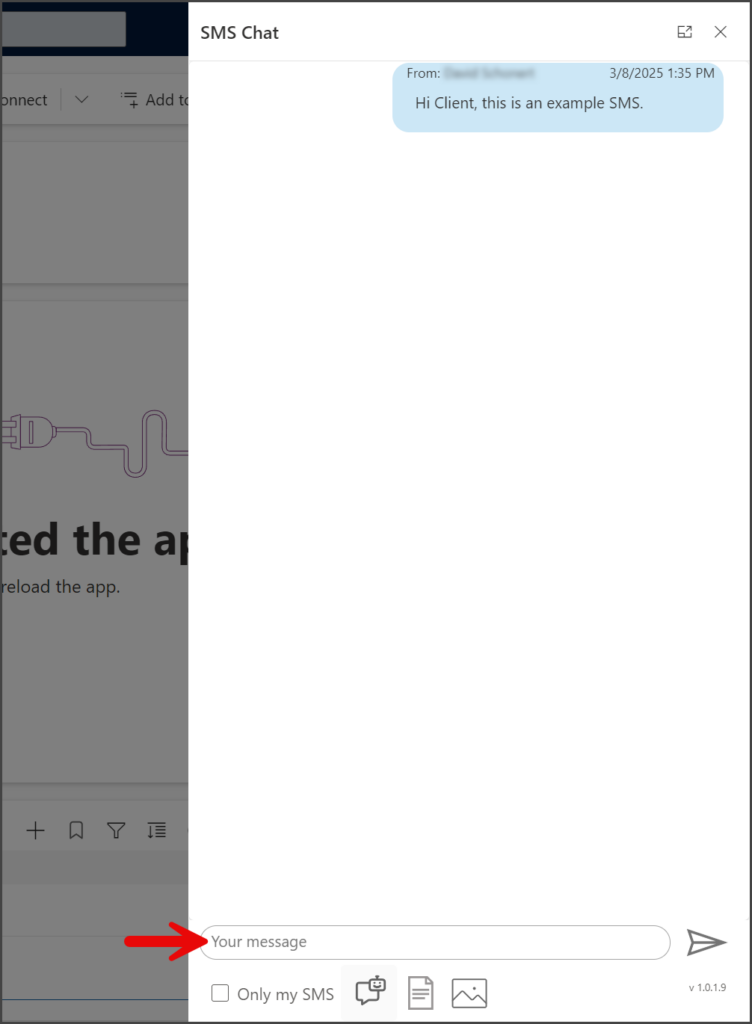
- Enter your message in the Message textbox.
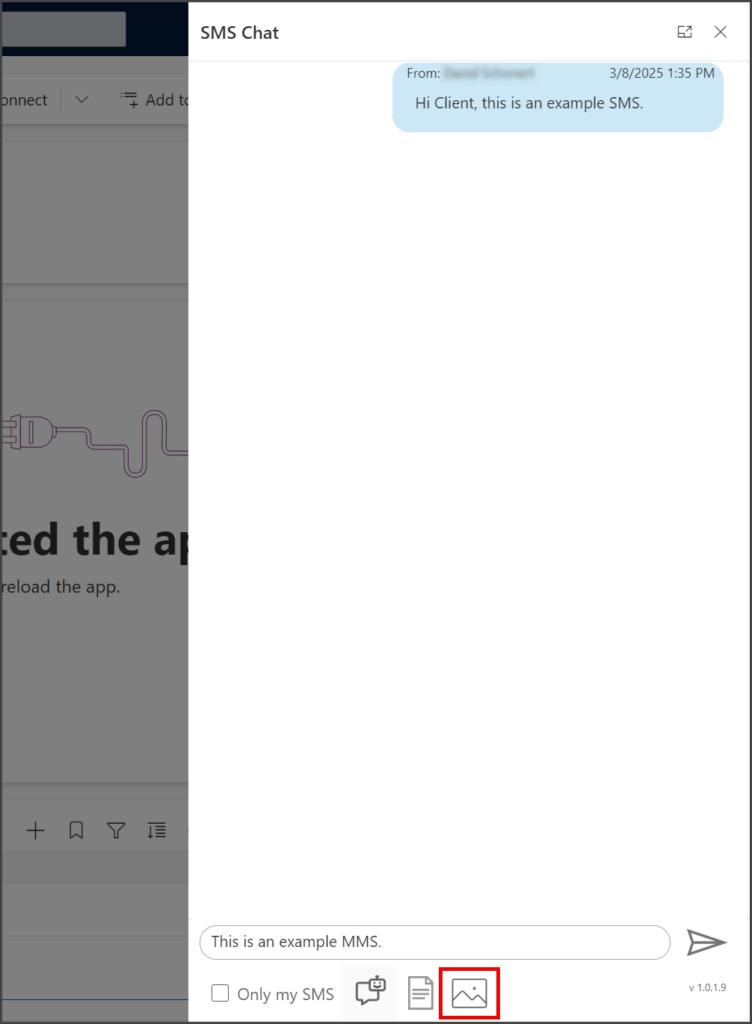
- Click the Image icon below the Message textbox.
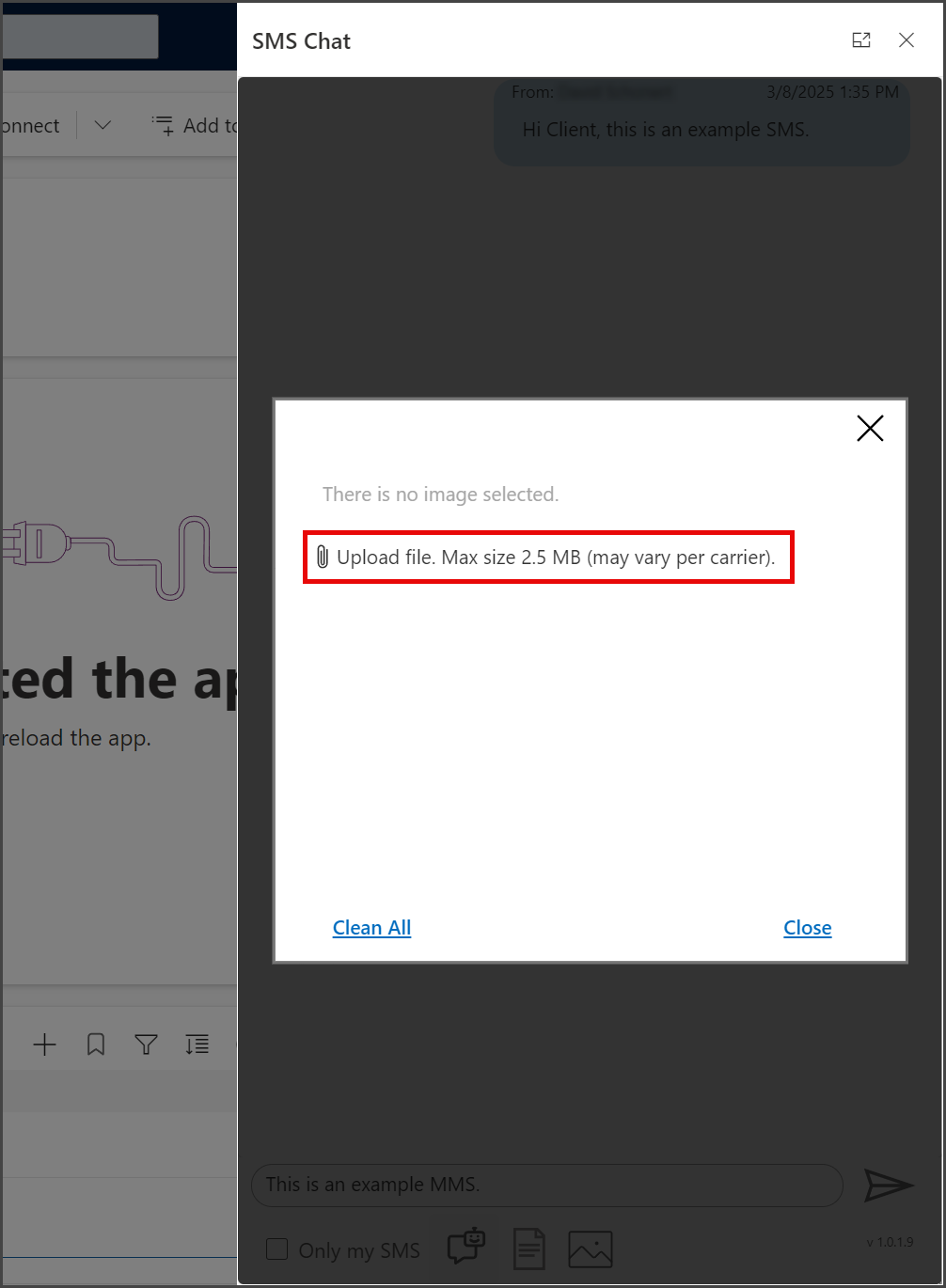
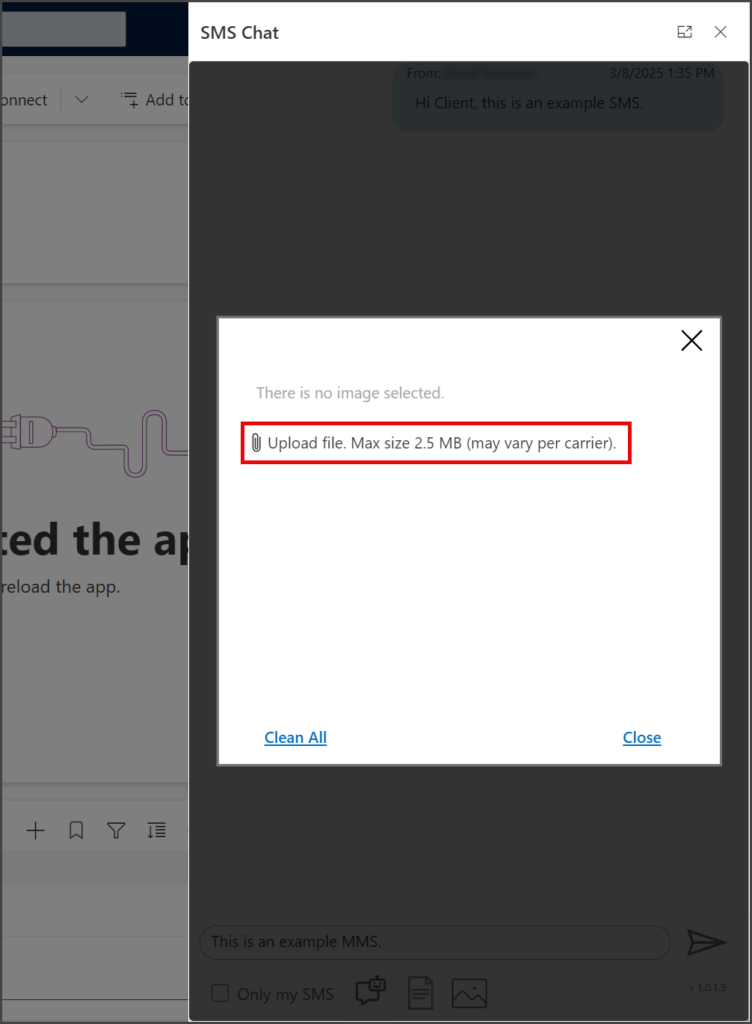
- Click Upload file. Max size 2.5 Mb (may vary per carrier).
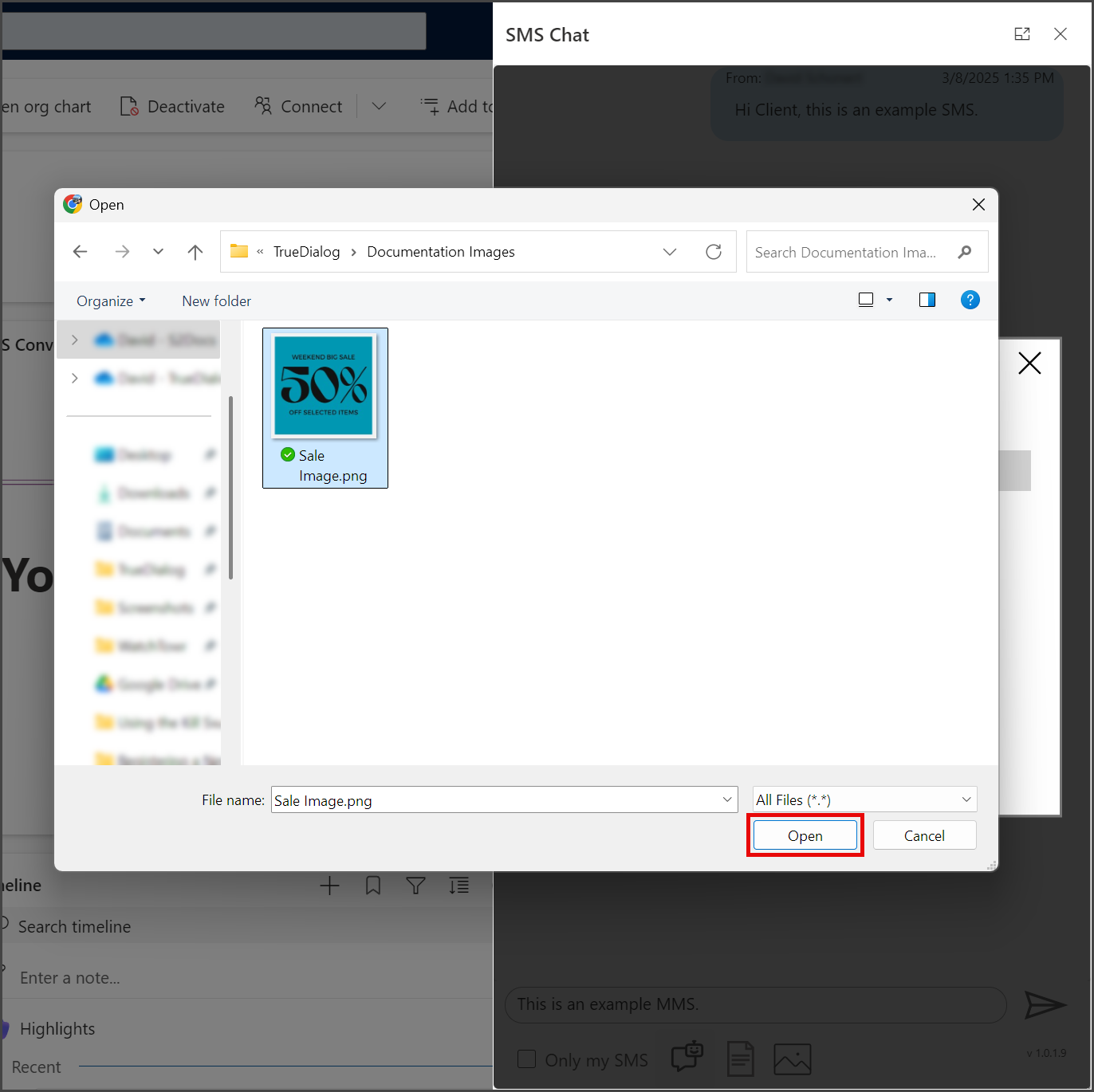
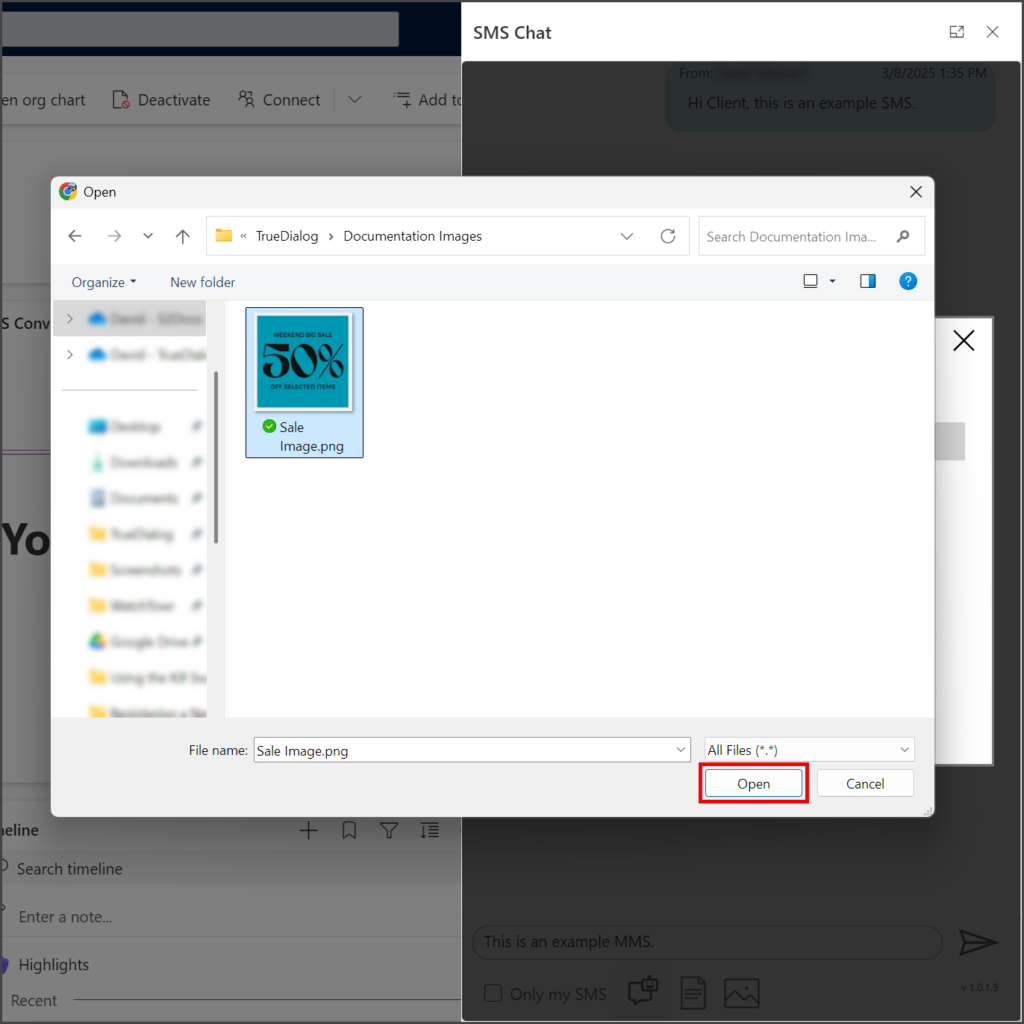
- Use the Open file window to select the image to send.
- Click Open.
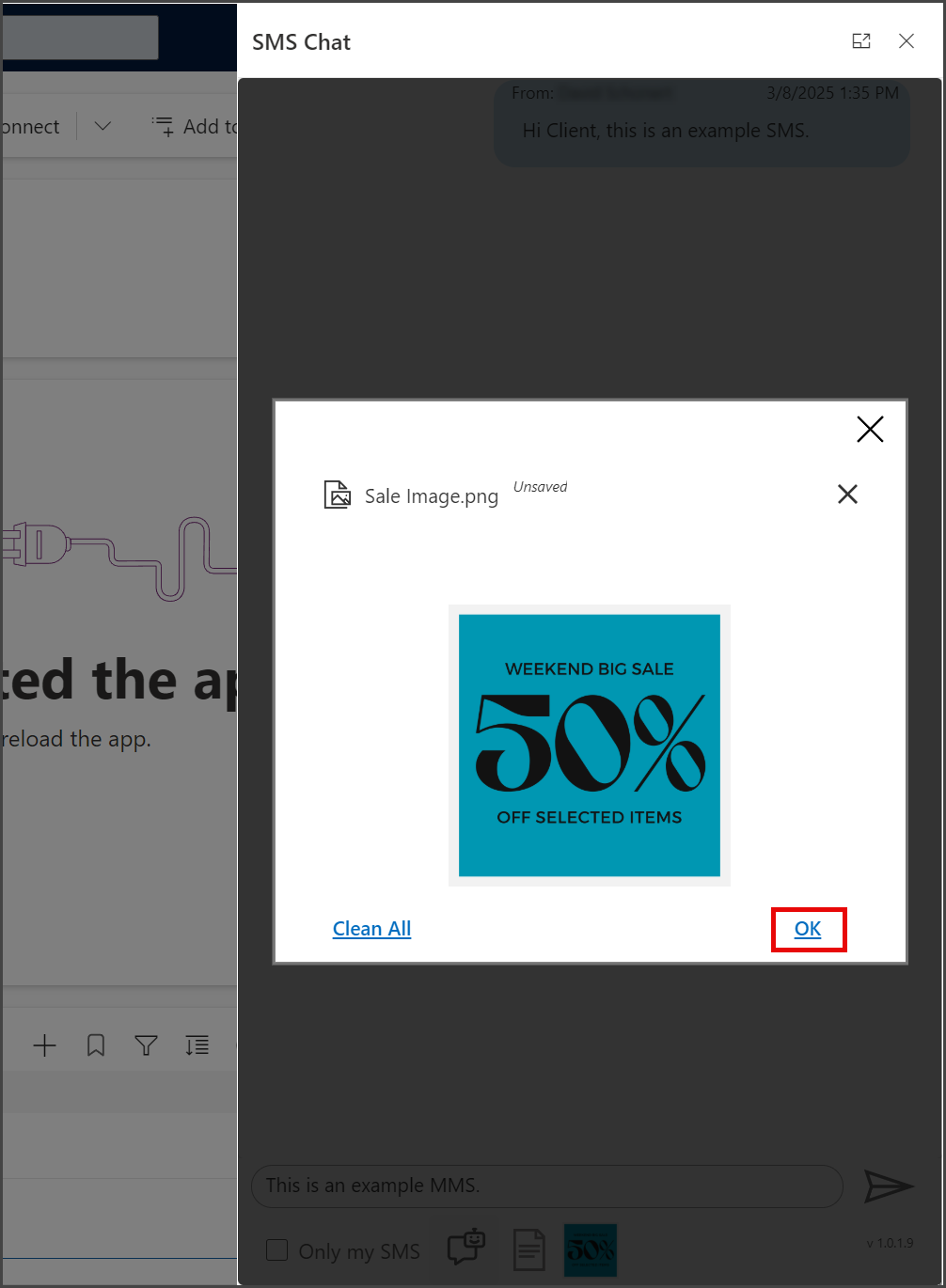
- Click Ok.
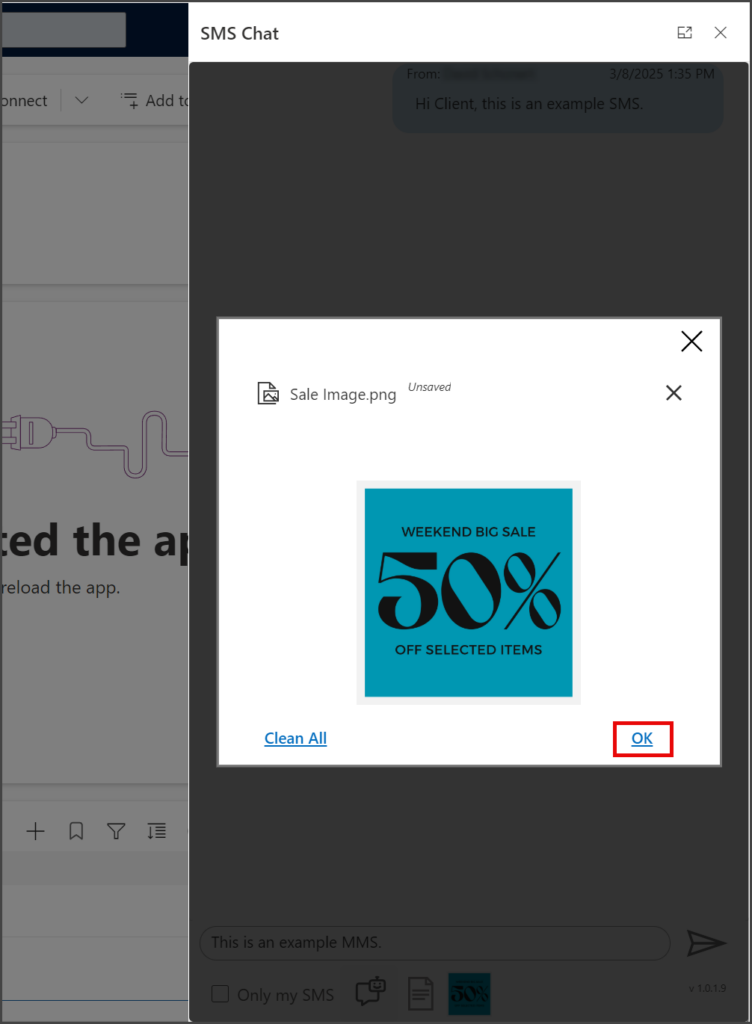
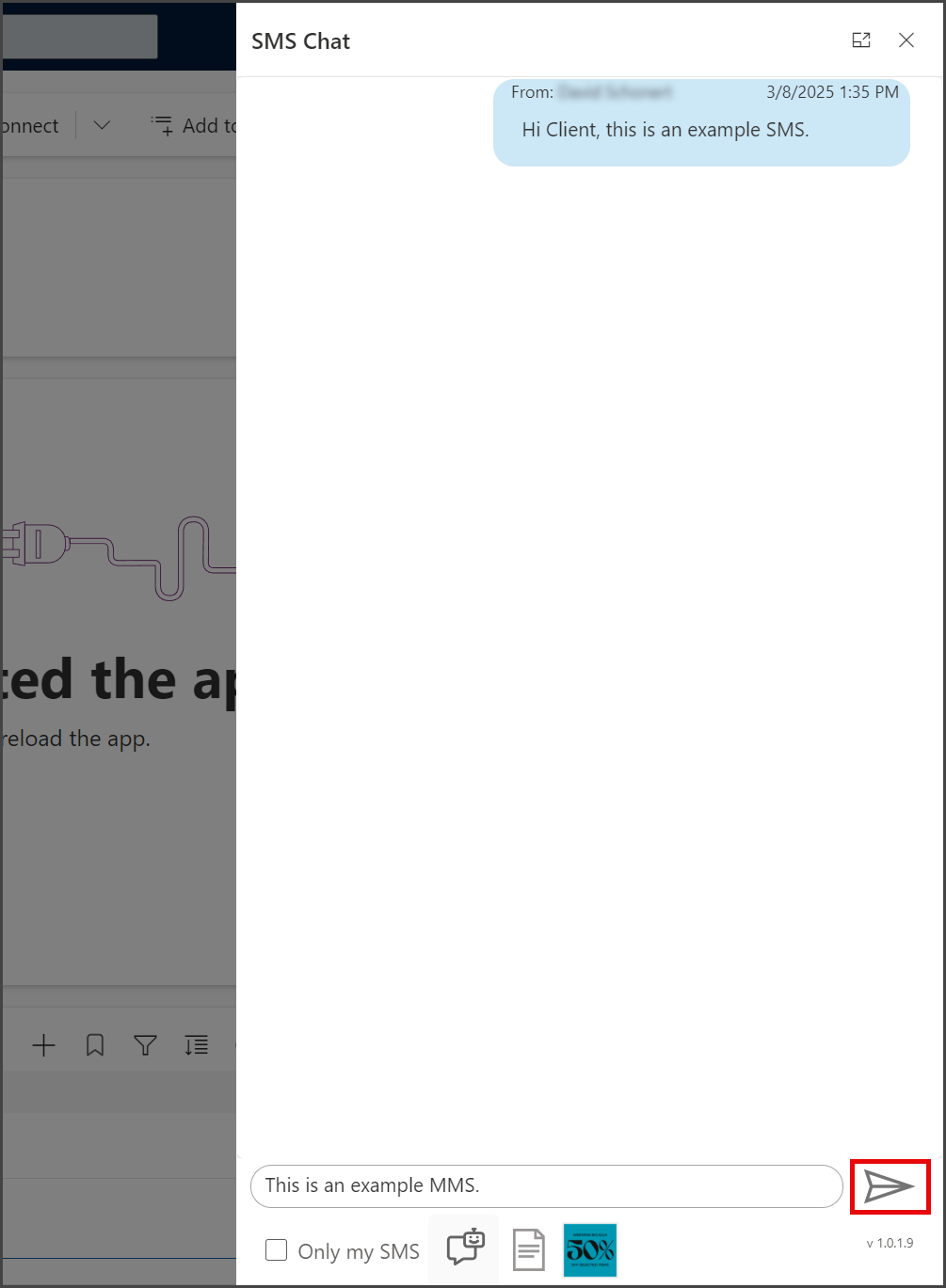
- A thumbnail of your attached image is displayed below the Message textbox.
- Click the Send Message icon.
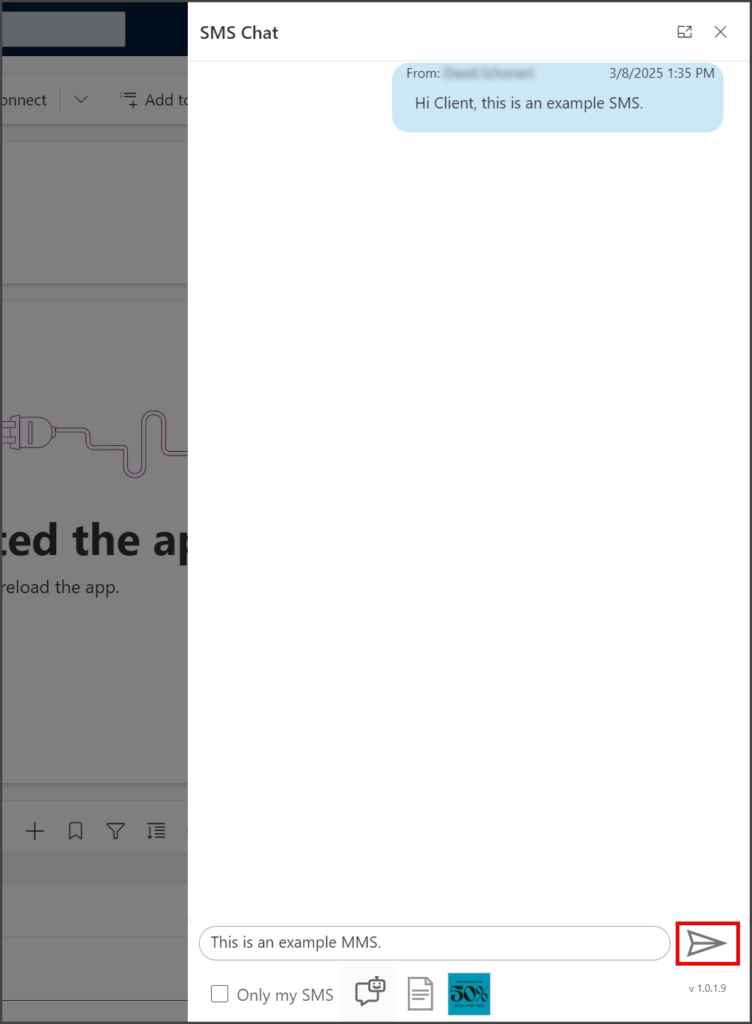
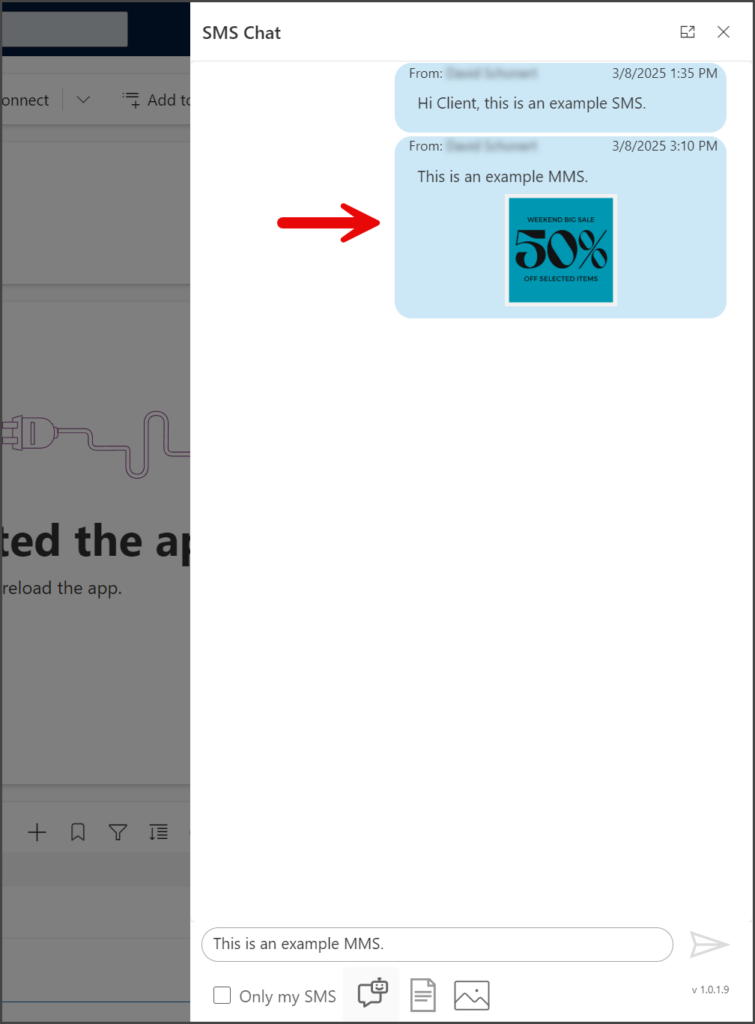
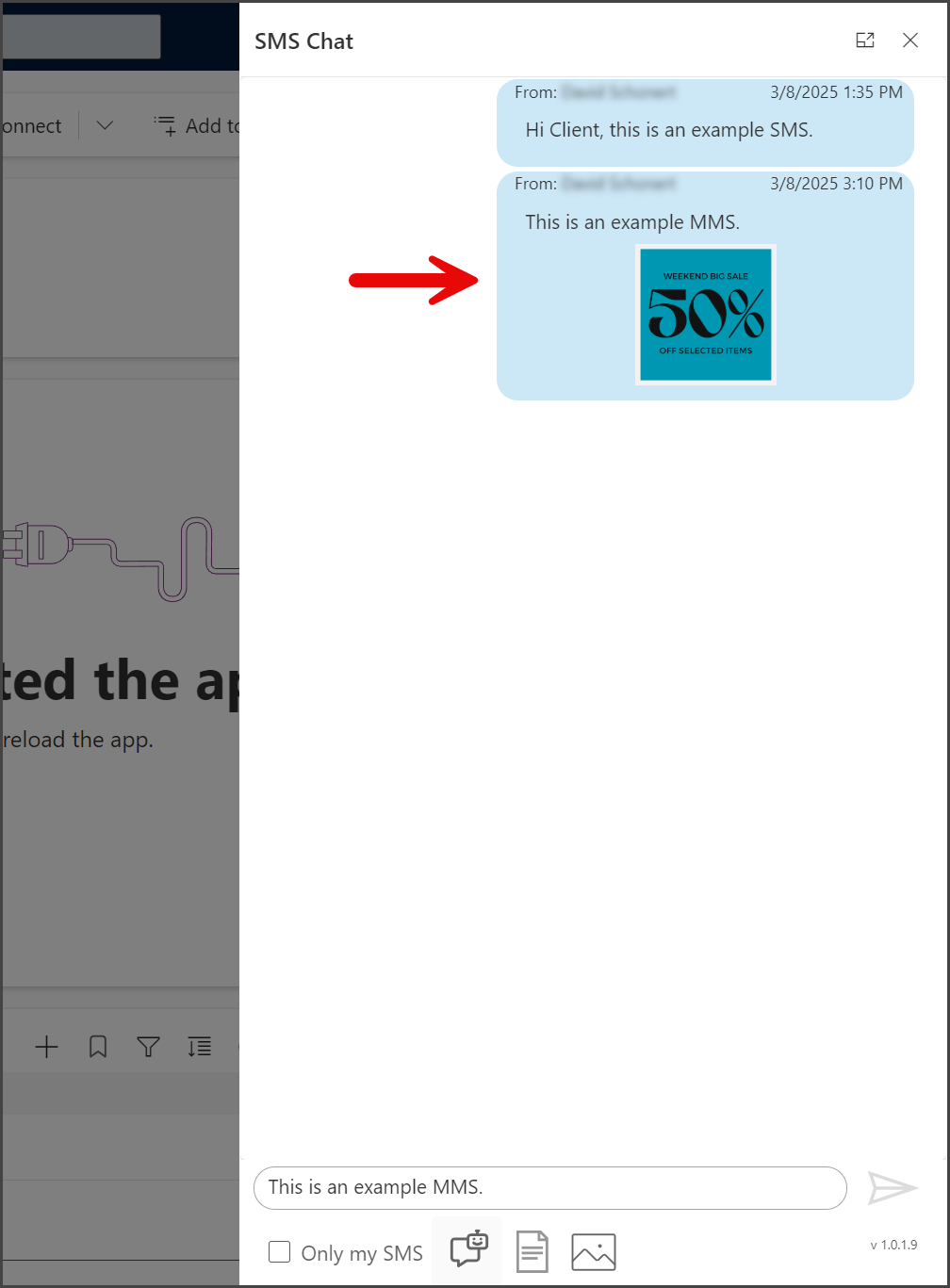
- Your sent message and attached image will appear in the message thread, and any replies will also be shown here.