
TrueDialog Portal
Administration > Subscriptions
All TrueDialog Integrations require your account to use Single Opt-In for your Subscription Opt-In Type. Below are instructions for how to check what Opt-In type your account is using and how to set it to Single Opt-In.
The following table explains how the different Opt-In types work. For more details about editing your subscription, see the Editing Subscriptions article.
| Opt-In Type | Description |
|---|---|
| Double Opt-In | When your subscription is set to Double Opt-In, new contacts will receive a request message asking them to opt-in before they can receive messages from a campaign. The contact must reply with OK to accept the opt-in request. Once the contact accepts the opt-in request, they will receive a program message confirming their subscription. The image below shows an example of a Double Opt-In message thread. Supported Platform: TrueDialog Portal |
| Single Opt-In | A Single Opt-In subscription doesn’t send an Opt-In request or require end-user acceptance. New contacts are automatically Opted In. Supported Platforms: TrueDialog Portal Salesforce Salesforce Marketing Cloud HubSpot Microsoft Dynamics Microsoft 365 Eloqua Marketo |
Check Opt-In Type
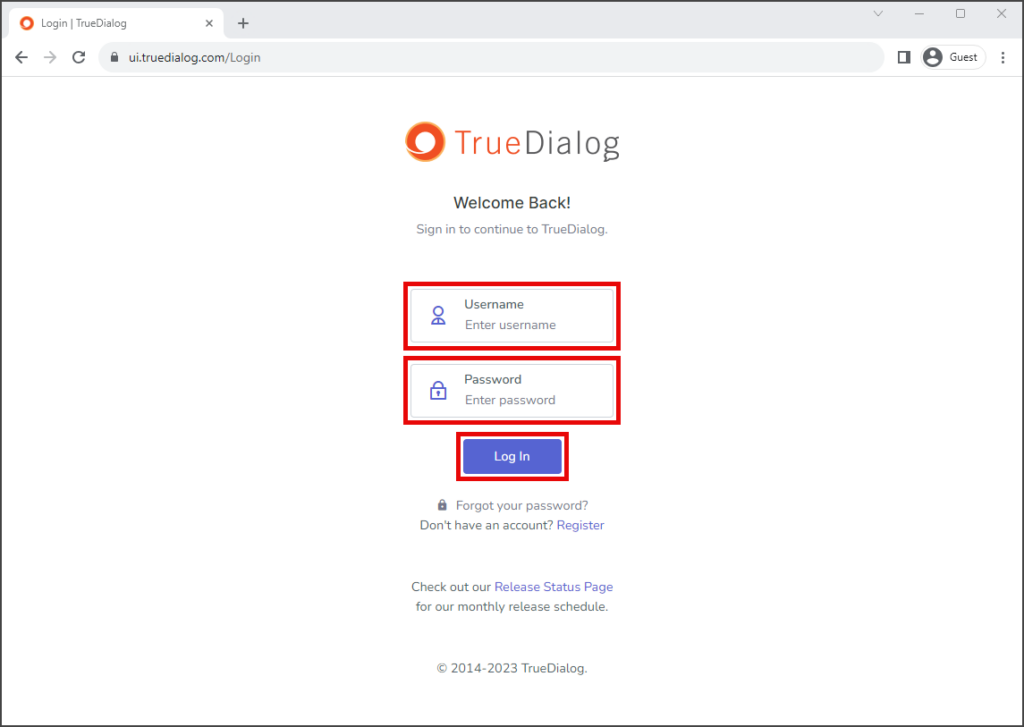
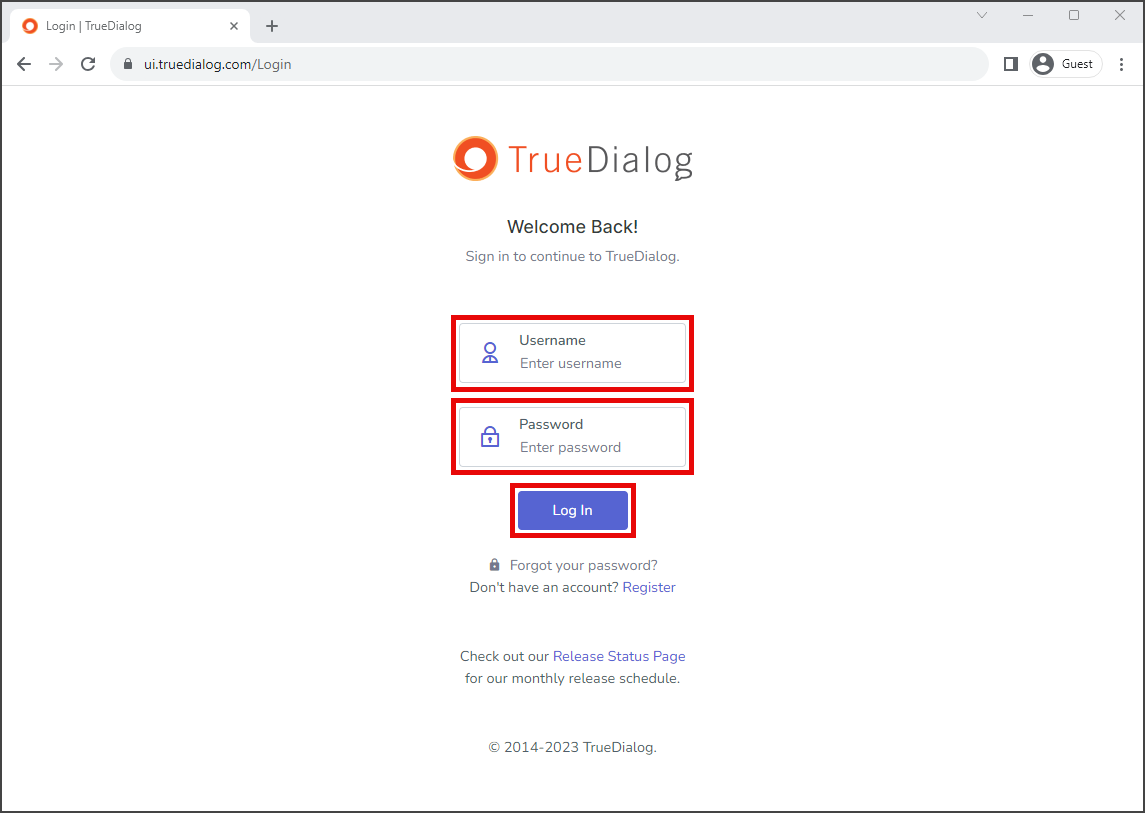
- Login to the TrueDialog Portal Login | TrueDialog.
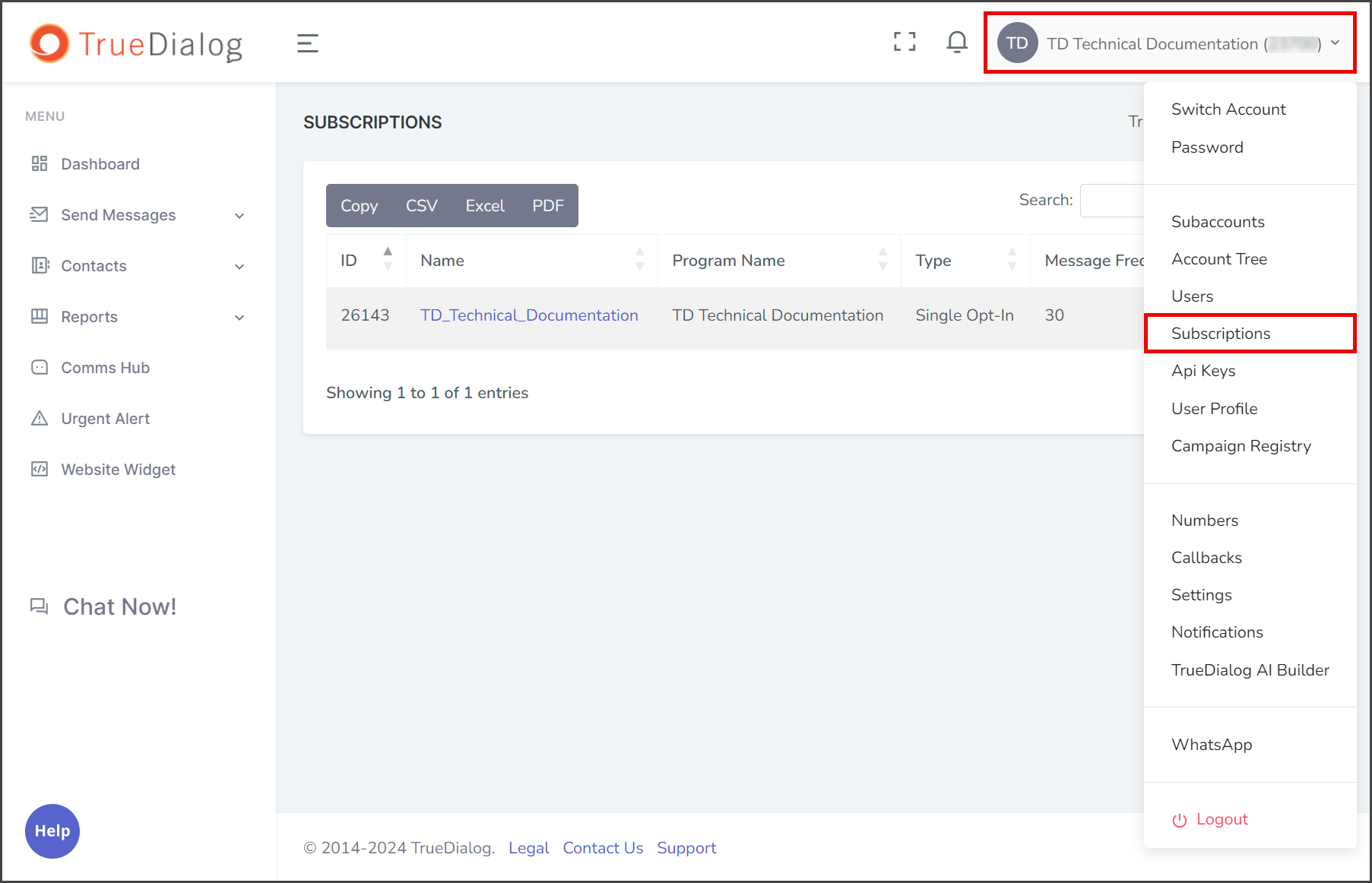
- Click your Account Name in the upper right corner.
- In the dropdown, select Subscriptions.
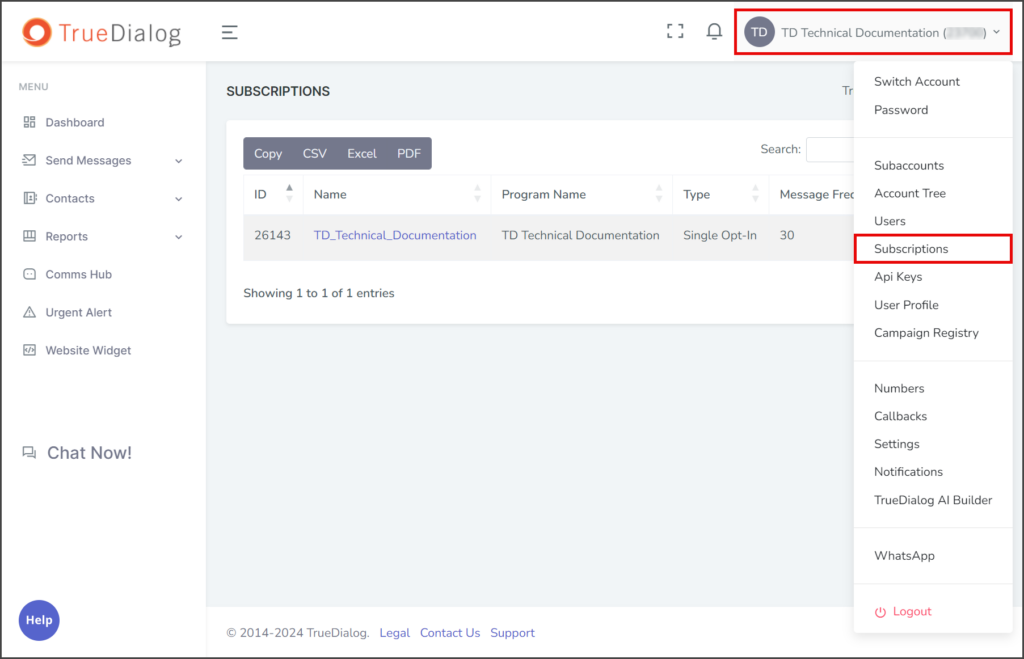
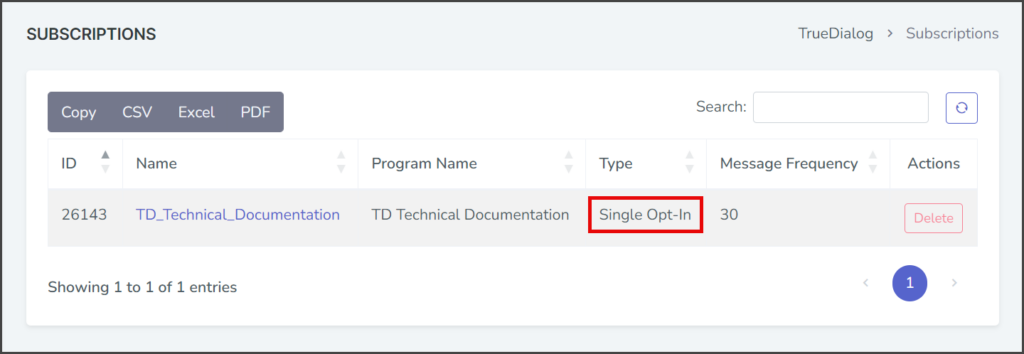
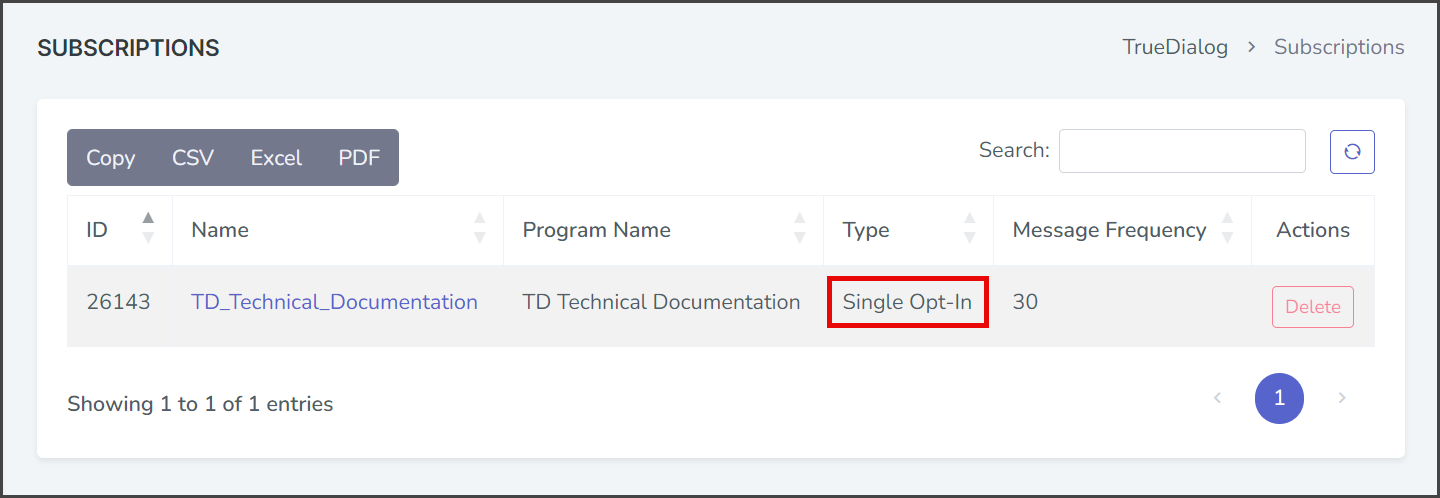
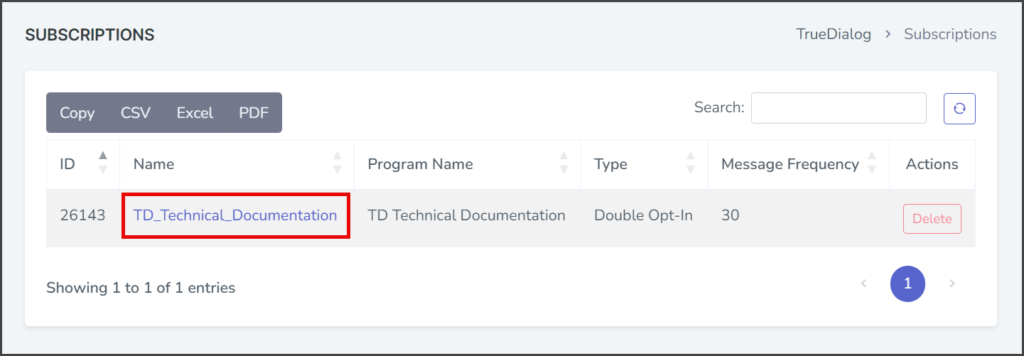
- Verify the Type column is Single Opt-In for your subscription.
Change Opt-In Type to Single Opt-In
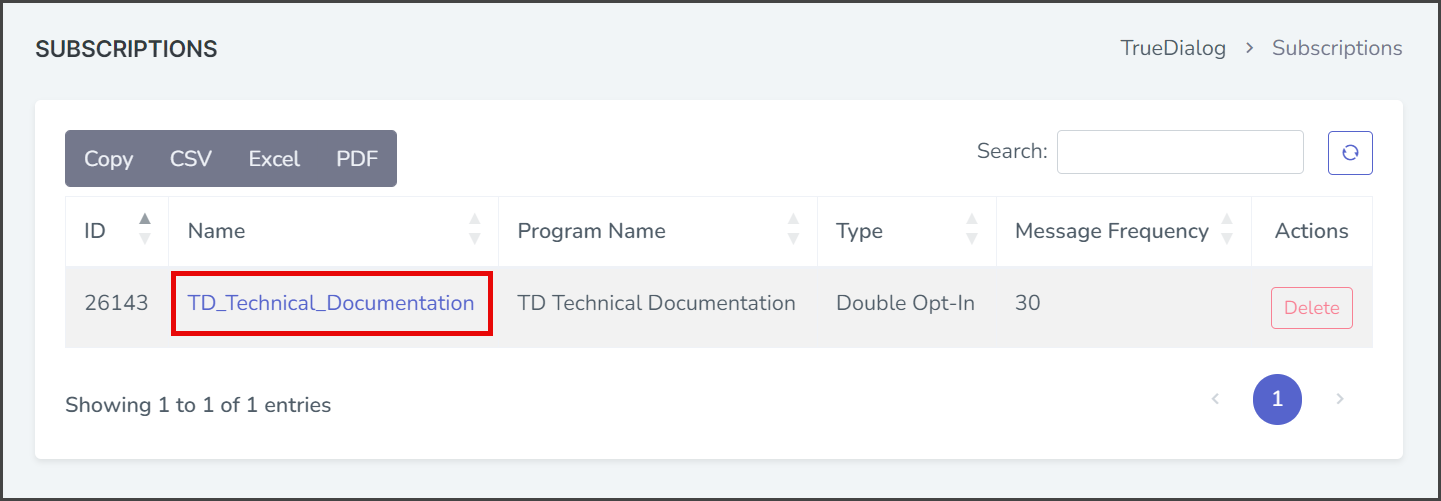
- Click the Subscription Name to edit the subscription.
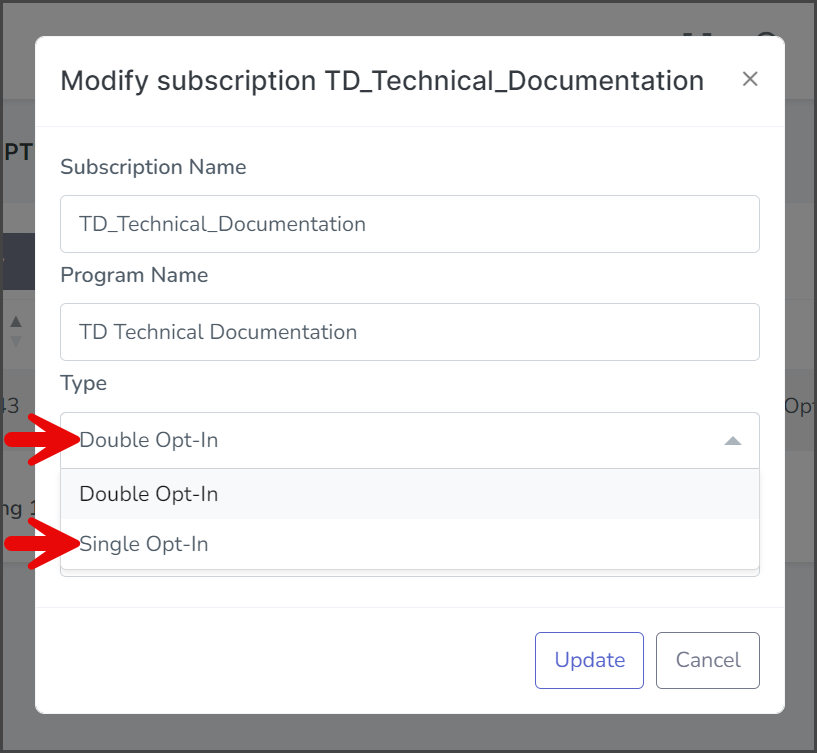
- Click the Type dropdown.
- Select Single Opt-In.
- Click Update.
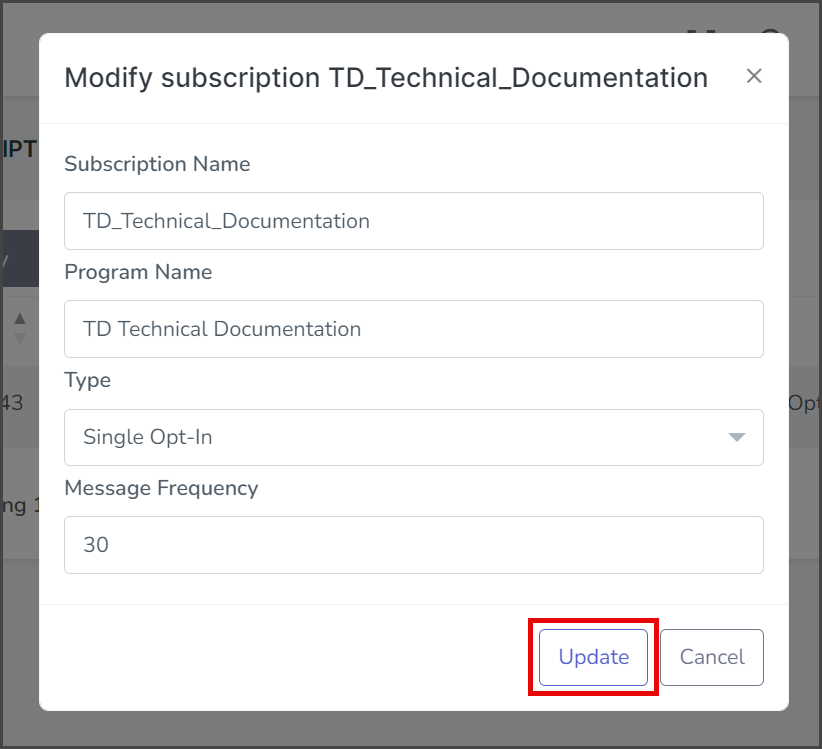
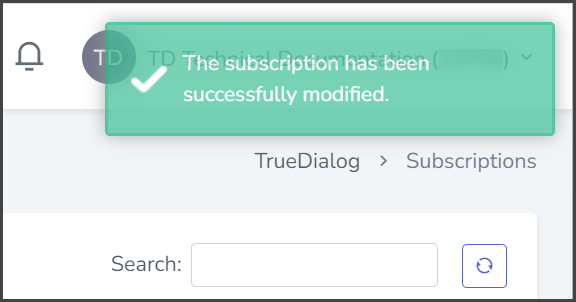
- After updating the subscription, a success message will appear in the upper right corner.